Options
WinScript Live features many options for customizing your user experience. The Options menu can be accessed by selecting Tools > Options.
Warning
All options selected in this menu are tied to WinScript Live, not to a particular script.
Note
All screenshots are taken with the default settings selected.
General
General options are settings for typical behaviors, as shown in Figure 1.
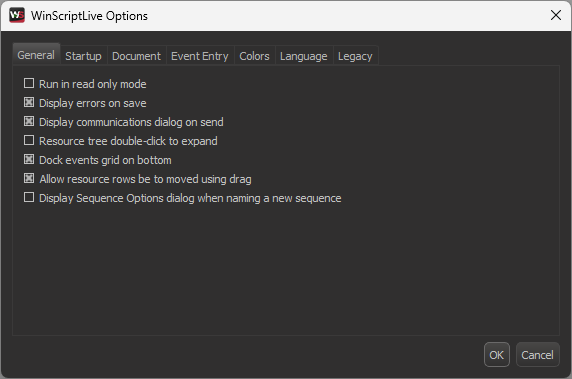
- Run in read only mode: when selected, disallows changes to the script. Very useful if you are opening a script you don't want to accidentally edit. Very frustrating if you check this box by accident in the middle of a training session in front of customers and spend 5 minutes wondering why nothing in the script seems to be working. Ask Matt how he knows.
- Display errors on save: when selected, the Error Checker will appear on Save to indicate if any errors in the script exist.
- Display communications dialog on send: when selected, TBD
- Resource tree double-click to expand: when selected, double-clicking a resource in the Resources View will expand or collapse the list of resources. If not selected, double-clicking will open the resource view for that particular resource.
- Dock events grid on bottom: when selected, the Events View will dock to the bottom of the screen. If not selected, the Events View will open to the right of any open windows like any other resource view.
- Allow resource rows to be moved using drag: when selected, allows resource rows to be dragged to new locations to move them around. Requires restart.
- Display Sequence Options dialog when naming a new sequence: when selected, when directly entering a name for a new sequence, after entering the name, the Sequence Options dialog will display. If unchecked, the new sequence will be a default Timed sequence, with no other options selected.
Startup
Startup options are settings for when WinScript Live opens, as shown in Figure 2.
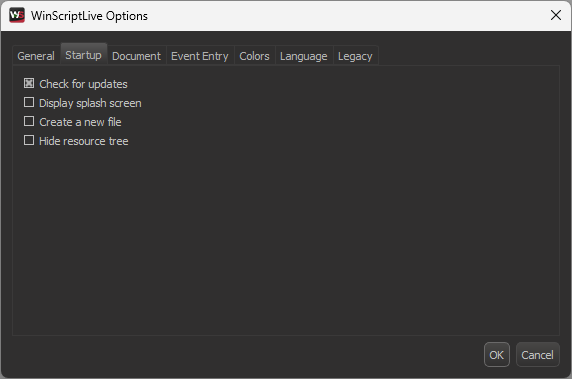
- Check for updates: when selected, WinScript Live will check automatically for any updates.
- Display splash screen: when selected, the splash screen will display, as shown in Figure 3. Selecting this will disallow selecting the following option.
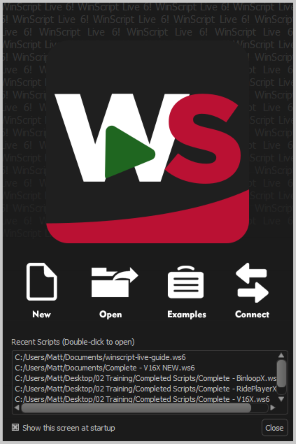
Figure 3 Splash Screen - Create a new file: when selected, WinScript Live will open to the Script Configuration dialog. If not selected, WinScript Live will open, but a script will then need to be opened or created.
- Hide resource tree: when selected, the Resource View will not be open by default when creating a new script.
Document
The Document option includes one single option, as shown in Figure 4.
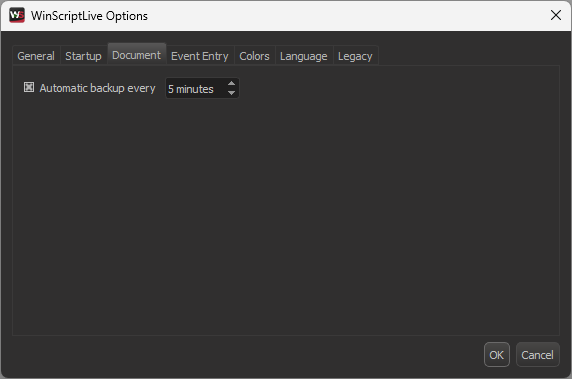
- Automatic backup every: when selected, WinScript Live will automatically save a backup version of your script to "Scriptname.ws6.bak" every 1 to 10 minutes. The first time this occurs, the .bak file is created. Every time after, this file is overwritten so as to not create one million files. This feature allows you to recover a script that contains changes but hasn't been saved by the user.
Event Entry
The Event Entry options include options for event creation, as shown in Figure 5.
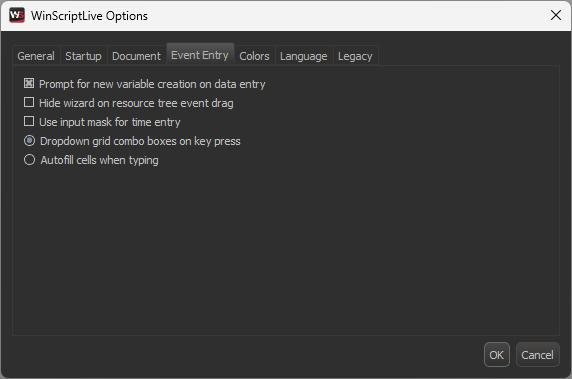
- Prompt for new variable creation on data entry: when selected, if a variable name that does not currently exist is used in an event, this option will make the Invalid Data Parameter dialog appear that will ask if you want to create the variable as shown in Figure 6. Selecting OK in this dialog will open the Edit Variable dialog.
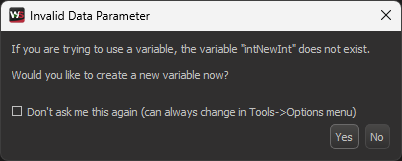
Figure 6 Invalid Data Parameter Dialog - Hide wizard on resource tree event drag: when selected, dragging an event from the Resource View into the Event View will not display the Edit Event dialog for that new event.
- Use input mask for time entry: when selected, entering a time into the time field of an event in a timed sequence will force you to enter the time in the timecode format and automatically insert the delimiters (":" and "."") as you type. If not selected, you can enter any number and it will be interpreted as number of frames.
- Dropdown grid combo boxes on key press: when selected, typing into the Event filed of an event will show a combo box with all event matching the text you've entered
- Autofill cells when typing: when selected, typing into the Event filed of an event will autofill cells as you type, instead of the above drop down
Colors
The Colors option allows you to change the color theme of WinScript Live, as shown in Figure 7.
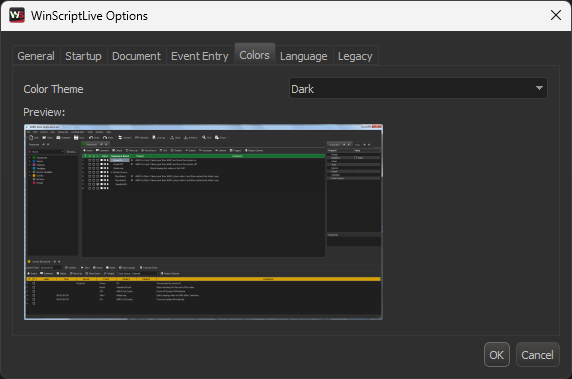
- Color Theme: select between Dark Color Theme (default) or Light Color Theme (correct)
Language
The Language option allows you to change the language of WinScript Live, as shown in Figure 8.
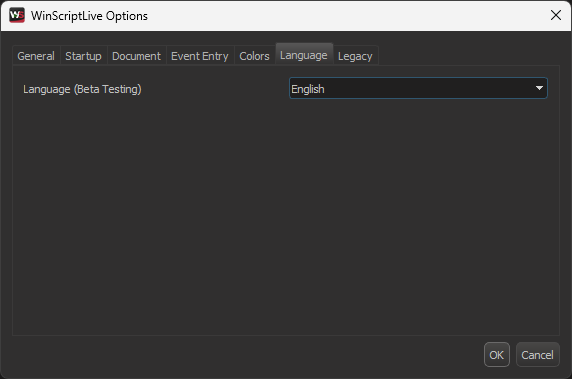
- Language: select from English, Auto Detect, and Chinese (Simplified)
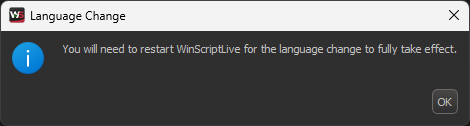
When changing the language, you will be prompted to restart WinScript Live for the changes to take effect, as shown in Figure 9.
Note
This feature is still in beta testing.
Legacy
The Legacy options allow you to set WinScript Live to behave more like it did in the days of yore, as shown in Figure 10.
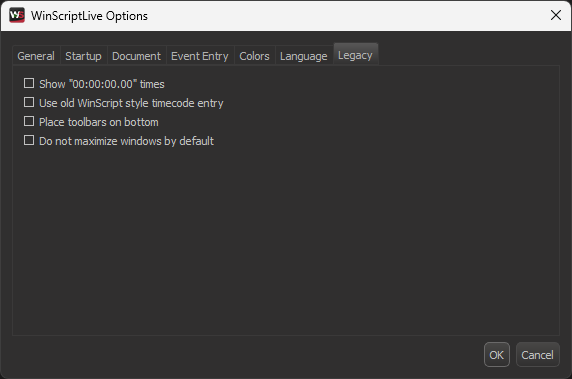
- Show "00:00:00.00" times: option does nothing (default behavior in WSL)
- Use old WinScript style timecode entry: option does nothing (default behavior in WSL)
- Place toolbars on bottom: when selected, toolbars for each resource view will appear on the bottom of the resource view, as opposed to the top
- Do not maxmimize windows by default: when selected, any resource views that are opened are not maximized to the docked area, as shown in Figure 11